Loading your companion…

HELP & GUIDANCE
A little guidance.
A clearer journey.
Simple steps for prayer, Qur’an and your community. Find an answer or tell us how we can help.
A QUICK WALKTHROUGH
See where to tap.
Real screens from the iPhone app. Select a numbered circle for a simple explanation.
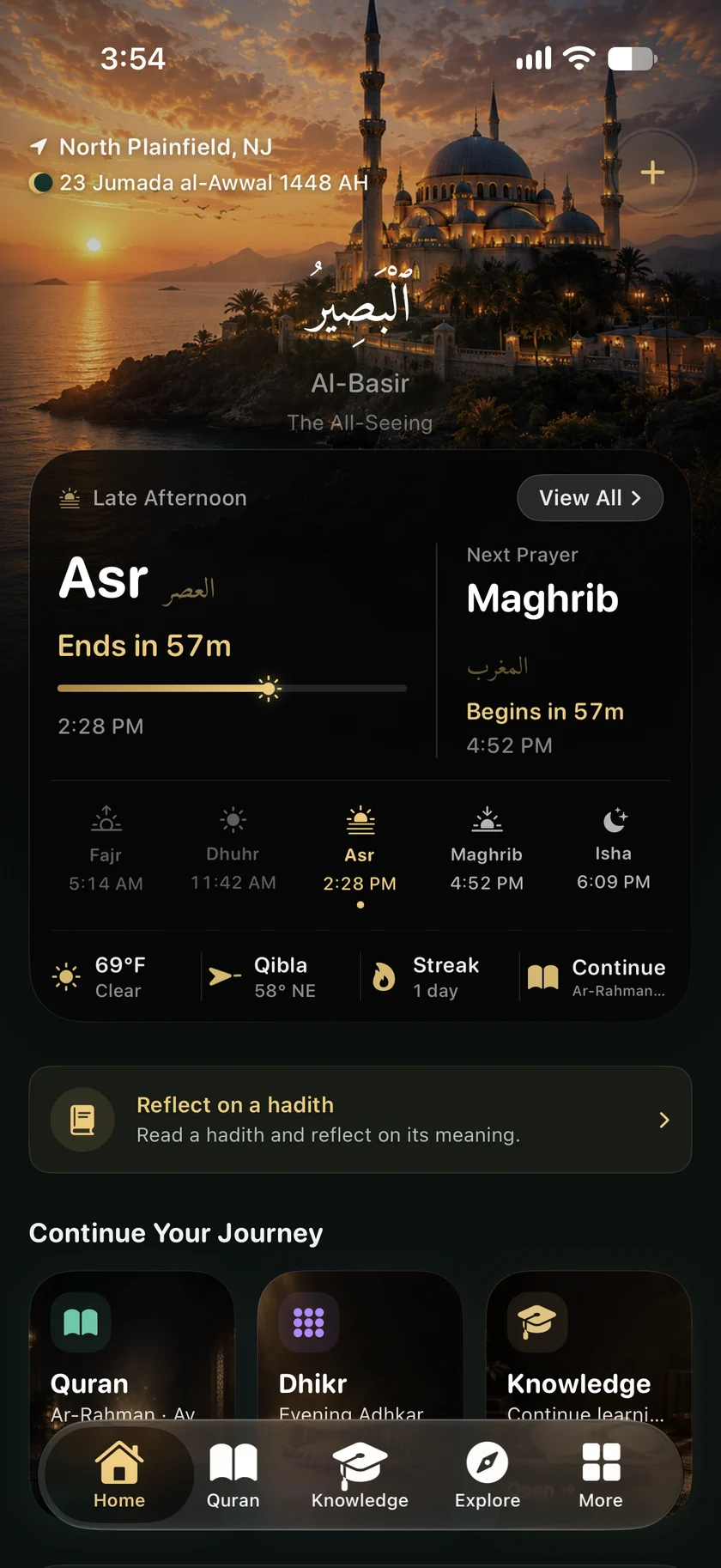
STEP 1 OF 3
Your daily home
See the current prayer and the next prayer for your selected location.
Open a larger screenshot ↗ Screens show the iPhone app. Layouts may vary with your settings and app version. Photos and confirmed schedules vary by mosque.
Hasanat TrackerUnderstand your reading activity
- In the iPhone app, open Qur’an and choose the reading activity or Hasanat Tracker.
- Switch between Today, 7 Days, 30 Days and All Time to explore the activity shown.
- The hasanat figure is an app estimate, not a measure of acceptance or spiritual worth. Read at a pace that works for you.
Juz, Tafsir & Qur’an toolsFind more ways to read and reflect
- In the iPhone Qur’an tab, scroll to Explore. Choose Surahs or Juz to browse.
- Open Bookmarks to return to saved verses, or Tafsir for the available explanations.
- The tools grid also includes Audio, Themes, Reflections, Hifz, Khatam and Settings. Follow the options shown in your app version.
- These screenshots describe iPhone features. The website reader has its own available controls.
Haramain Live & Qur’an RadioWatch or listen from Explore
- In the iPhone app, open Explore and choose Haramain Live or Quran Radio.
- For Haramain Live, choose the available Makkah or Madinah broadcast and tap Watch live.
- For Quran Radio, select a station and use the playback controls. Streaming requires an internet connection; available stations can change.
Getting startedStart with the essentials
- Open Home for today’s prayer times and shortcuts.
- Choose your city, or allow location when you want nearby information.
- You can explore without an account. Sign in to use shared bookmarks, preferences and requests.
Prayer times & preferencesMake the timetable yours
- Open Prayer Times and choose your location. On the website, switch between Today, Week and Month.
- Open calculation preferences to choose the method and Asr school followed by your community.
- Choose 12-hour or 24-hour time and your distance units in settings.
- Calculated prayer times are different from a mosque’s iqamah or Friday schedule; check the mosque card for those.
Find a mosqueSearch, explore and plan your visit
- Open Mosque Finder and enter a city, postcode or mosque name. For a postcode, choose its country.
- Select a search result, then tap a marker or mosque card to open its details.
- Look for prayer, iqamah and Friday sessions. A missing time means it has not been provided; it does not mean the mosque has no prayer.
- Check the confirmation date and source before travelling. Open directions when ready.
Suggest a correction or prayer placeHelp keep community information useful
- Open the mosque card and choose Suggest a correction. Guest timing suggestions are available; sign in to track your submissions and use account features.
- Choose a schedule, correction or custom prayer place. Add clear details and how you confirmed them. In-person confirmation can be used without a website link.
- For Friday prayer, add each session separately, including khutbah and prayer times.
- Review your details and submit once. A pending suggestion is not a confirmed schedule. Check the displayed receipt and status before retrying; accepted changes become available to other users.
Add a custom or temporary prayer placeMake useful places easier to find
- In the iPhone app, open Explore → Add a prayer space. Choose the place type and enter its name and address.
- Position the pin accurately. Confirm public access, permission and only the facilities you know are available. Private home gatherings should not be shared publicly.
- Choose Permanent or Temporary where the form offers Lifespan. Temporary places need correct start/end dates and the place’s timezone. Leave opening hours unknown when you cannot confirm them.
- Use Review to check the pin, access details, facilities and dates before Submit. Select Unknown for any facility you cannot confirm.
- Check your submissions for their current status. A new place may appear provisionally before independent confirmation. Unconfirmed places can expire; temporary places follow their listed dates. Prayer schedules can be suggested separately.
Qur’an & bookmarksReturn to the verses you love
- Open Qur’an and choose a surah by name or number.
- Read the Arabic alongside the meaning. Use larger text or jump to a verse when needed.
- Tap Save verse to bookmark it. Use Saved verses to find it again.
- Bookmarks remain available on the device where you save them. Where online saving is offered, sign in with the same account before saving or restoring supported bookmarks.
Account & shared informationOne account for your connected journey
- Choose Apple, Google or email-code sign-in from Account. You can continue using core reading and prayer features as a guest.
- Use More → Account in the iPhone app. To add another sign-in method, link it while signed in. Apple Hide My Email can use a different address, so matching names alone does not link accounts.
- Review linked sign-in methods in Account. Never share a verification code or password with support.
- When a connection is interrupted, retry saved uploads after reconnecting. Do not resubmit the same information repeatedly.
Qibla & travelFind your direction
- Open Qibla in the iPhone app and allow location if you want a direction for your current position.
- Follow any compass calibration instructions; keep the phone away from magnets and metal.
- When travelling, confirm your new location for prayer times and search nearby mosques.
Adhan & remindersChoose how you are reminded
- Open the iPhone notification settings and choose your prayer reminders and available sounds.
- Allow notifications in iPhone Settings if reminders are disabled. Check Focus and silent-mode settings if a reminder is missed.
- Recheck your location and calculation preferences after travelling.
Daily learning & reflectionBuild a gentle routine
- Explore the iPhone app’s dua, dhikr, Hadith and Names of Allah sections.
- Choose an item to read its text, meaning and any available audio.
- Use learning activities and your salah journey at a pace that works for you. Available tools can differ between the iPhone app and website.
Qur’an audio, tafsir & reading themesExplore the iPhone reader
- In the iPhone Qur’an section, open Audio to choose from available reciters and playback controls.
- Use Downloads to manage saved audio before a trip. Check that your chosen content has finished downloading before going offline.
- Explore Tafsir for explanation and use the reader settings for text, translation, themes and tajweed colours. The tajweed legend explains the colour marks.
Duas & the dhikr counterA quiet moment of remembrance
- Open Duas in the iPhone app, browse a category and select a dua to read its Arabic and meaning.
- Open the dhikr counter for a counting session. Tap to count and use its controls when you want to start again.
- Keep your practice comfortable; use the text and available audio at your own pace.
Hadith & the Names of AllahRead with understanding
- Open Hadith to browse books and chapters or search the collection.
- Open a hadith to read the text and its reference. Include that reference if you report a content concern.
- Open 99 Names of Allah to explore the Arabic names, transliteration and meanings.
Learn to pray, Qur’an academy & quizzesLearn one step at a time
- Open Learn to Pray for the available preparation and prayer lessons.
- Use the Qur’an learning section to study letters, joining, vowel marks and beginner reading; open a lesson to follow its activities.
- Visit the quiz section, choose an available activity and work through the questions. Review your learning progress as you go.
Goals & your reading journeyGentle progress, without pressure
- Open Goals in the iPhone app and tap + to add a daily goal. Choose its type and target, then Save.
- Use the progress controls to record what you have completed.
- For a Qur’an reading plan, choose a finish date or Custom Plan to see a suggested daily reading amount.
Islamic calendar & historyExplore dates and occasions
- Open the Islamic Calendar in the iPhone app to explore Hijri dates and occasions.
- Local moon-sighting decisions can differ; confirm observances with your local community.
- Open Islamic History to explore the available stories and details.
Language, appearance & devicesMake the experience comfortable
- Open Settings in the iPhone app for language and content choices, appearance and prayer preferences.
- Choose larger text or a reading theme where the reader offers it.
- For Apple Watch, open Settings → Devices and check the watch connection and sync status. Not every iPhone feature is available on the watch or website.
Troubleshooting & requestsTell us what needs attention
- For a map problem, check your connection and use Retry when shown. Try a city search if location is unavailable.
- For a missing schedule, open the mosque and check its confirmation date. You can suggest confirmed information.
- For a problem or feature idea, use the form below to prepare an email. Include the screen, what happened and what you expected. Review the message in your email app before sending; sign-in is not required.
- Choose Urgent for a serious app issue. For an emergency, contact your local emergency service. Support responses are not guaranteed immediately.
WE’RE LISTENING
Make it better, together.
Report a problem, suggest a feature or tell us what needs attention. We’ll prepare an email to support@iqrawasalli.com for you to review and send. Your draft stays in this browser until you open your email app.
For urgent app issues, choose Urgent. For an emergency, contact your local emergency service.
Loading…
This opens your email app; you choose when to send. If you don’t have an email app configured, email support@iqrawasalli.com from your usual inbox. Previous website requests remain available on this page.